
1. Create the Realtor Contact
Create the Realtor using the standard Contact Creation process.
For detailed instructions, see Create a Contact in HubSpot.
- Open the Create Contact form.
- Enter the Realtor's information.
- From I am registering/creating: select:
- Realtor Only, or
- Buyer with Realtor, or
- Buyer and Co-Buyer with Realtor
- Complete all required fields.
- Click Create.
2. Create a Sales Opportunity
A Sales Opportunity represents an opportunity to sell a home. If the agent is associated with an active home sale opportunity, select Yes to create a Sales Opportunity. If you are only creating an agent contact record, select No.
If the Realtor should be associated with an active sales opportunity, select Yes when prompted:
"Is this a Sales Opportunity?"
- Select Yes to automatically create a new Sales Opportunity.
- Select No if you are only creating contact records.

If a Sales Opportunity is created during registration, the Opportunity will initially be named after the Realtor and include (Realtor) in the Opportunity name.
What Is the Initial Opportunity Name When Created from an Agent Registration?
When a Sales Opportunity is created from a Realtor registration, the Opportunity is temporarily named using the Realtor's name and includes (Realtor) in the title.
Example: Smith, John (Realtor) | Community Name
This indicates that a Buyer has not yet been associated to the Opportunity.
A task will automatically be created for the Opportunity Owner to add and associate the Buyer as Buyer 1.
3. Add the Buyer to the Opportunity
When you receive the buyer's information:
- Navigate to the Opportunity (Deal) that needs an additional contact associated with it.
- Open the Opportunity record.
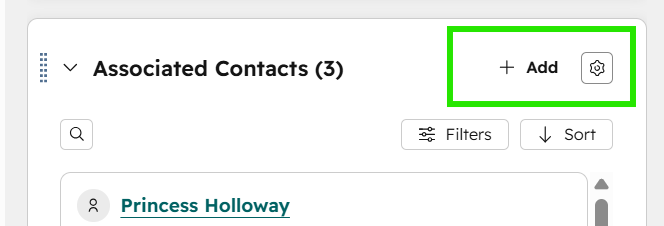
- In the right-hand panel, locate the Associated Contacts section and click + Add.
How Do I Search for an Existing Contact?
Before creating a new contact, search HubSpot to determine whether the contact already exists.
- Enter the contact's name, email address, or phone number in the search field.
- If the contact is found, select the contact.
- If the contact is not found, click Create New Contact.
- Complete the contact information.
- Click Next.
- On the association screen, confirm the contact is selected, then proceed to assign an association label (see the Apply an Association Label section below).
Apply an Association Label
Association labels identify the contact's relationship to the Opportunity. The buyer must be labeled Buyer 1 for the automatic Opportunity renaming to run.
- Click + Add Association Label.
- Assign the Buyer association label as Buyer 1.
- Click Save (or Apply) to confirm the association label.
Important: The Buyer must be associated as Buyer 1 for the Opportunity renaming automation to run.
4. Automatic Opportunity Renaming
After a Buyer is associated as Buyer 1, HubSpot automatically updates the Opportunity name.
Before: Smith, John (Realtor) | Community Name
After: Doe, Jane | Community Name
No manual updates are required. Once the Buyer is associated as Buyer 1, the Opportunity name will update automatically.