
Access Your Opportunities (Deals)
- In the left-hand navigation menu, click CRM.
- Select Opportunities (Deals)
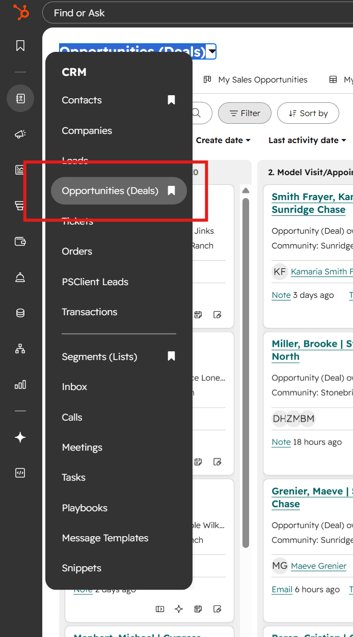
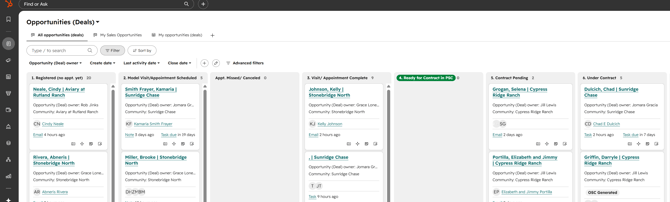
This opens the Opportunities (Deals) page, where all your deal records live.
💡 Tip
Save this page as a bookmark in your browser so you can quickly access it.
Save this page as a bookmark in your browser so you can quickly access it.
How do you view only your assigned Opportunities (Deals)?
To view only the Opportunities (Deals) assigned to you:
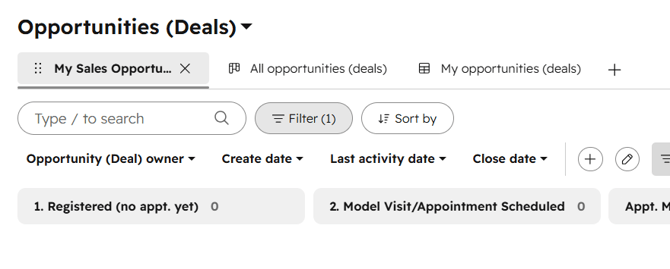
- At the top of the page, locate the view tabs.
- Click the My Sales Opportunities tab.
This will display Opportunities (Deals) where you are assigned as the Sales Manager (Deal Owner) or Sales Counselor.
How do you view Opportunities (Deals) by stage?
The default view is typically Board View, which organizes Opportunities (Deals) by Deal Stage.
In this view, you can:
- See where each Opportunity (Deal) is in the sales process
- Drag and drop Opportunities (Deals) between stages
- Quickly identify stalled or inactive Opportunities (Deals)
How do you switch to table view?
To view Opportunities (Deals) in a list format:
- Click the table/list view icon near the top right of the page.
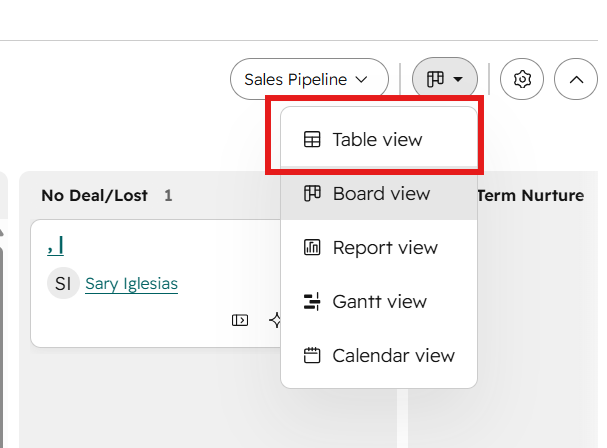
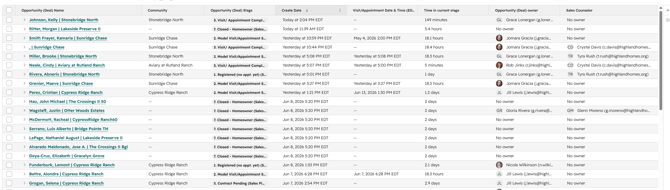
Table View allows you to:
- Sort and filter Opportunities (Deals)
- View additional fields
- Review multiple Opportunities (Deals) at once
Viewing an Opportunity (Deal)
To view details for a specific Opportunity (Deal):
- Click the Deal Name.
This will open the record, where you can view:
- Associated contact
- Deal Stage
- Notes and activities
- Assigned Community Manager
Tips to stay on top of your pipeline
- Review your Opportunities (Deals) regularly — aim for at least once a week
- Keep Deal Stages updated to reflect the current status
- Use Board View to track movement through the pipeline
- Follow up on Opportunities (Deals) that have not progressed within the expected timeframe for their current stage